

Buckets
A bucket is the top-level container of the S3-compatible Object Storage based on Ceph RGW. In the Storage app, open Object → Buckets in the left sidebar to create, view, and manage buckets, and to upload, download, and delete the objects (files) inside them.
Bucket List
Selecting Buckets in the sidebar shows the buckets you have access to. You can search for a bucket or create a new one at the top.
- Search: Filters buckets by attributes such as name.
- Sort: The default order is newest first. Click a column header to change the sort.
Sidebar (SNB)
Use the left sidebar to move between the Storage screens (Dashboard and Buckets). Buckets is under the Object group.
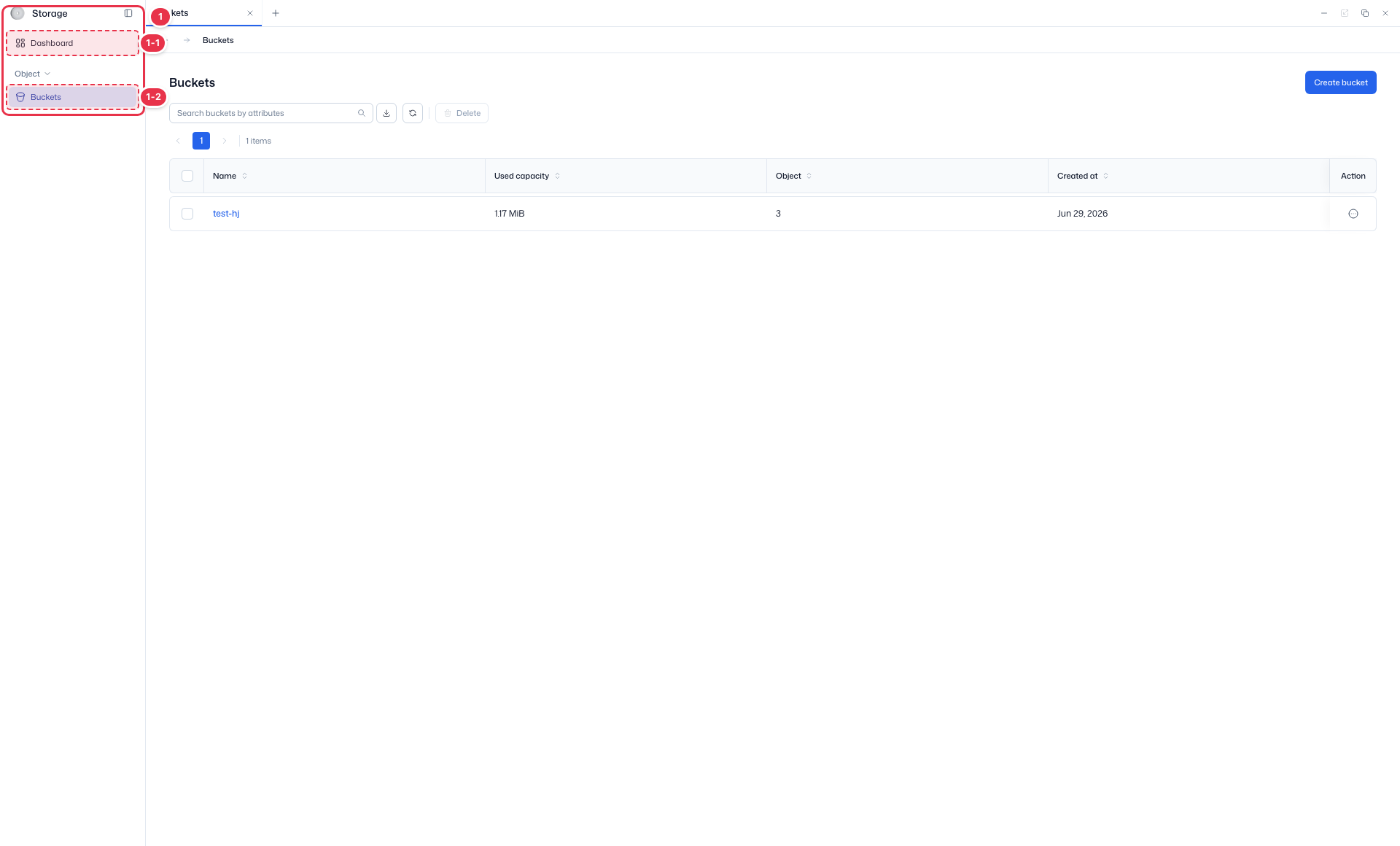
| No. | Feature | Item | Description |
|---|---|---|---|
| 1-1 | Dashboard | Dashboard | · A summary of storage inventory, capacity, and object performance statistics. |
| 1-2 | Buckets | Buckets | · List, create, view, and delete Object Storage buckets. |
Search and actions
Search for buckets, delete the selected ones, or create a new bucket.
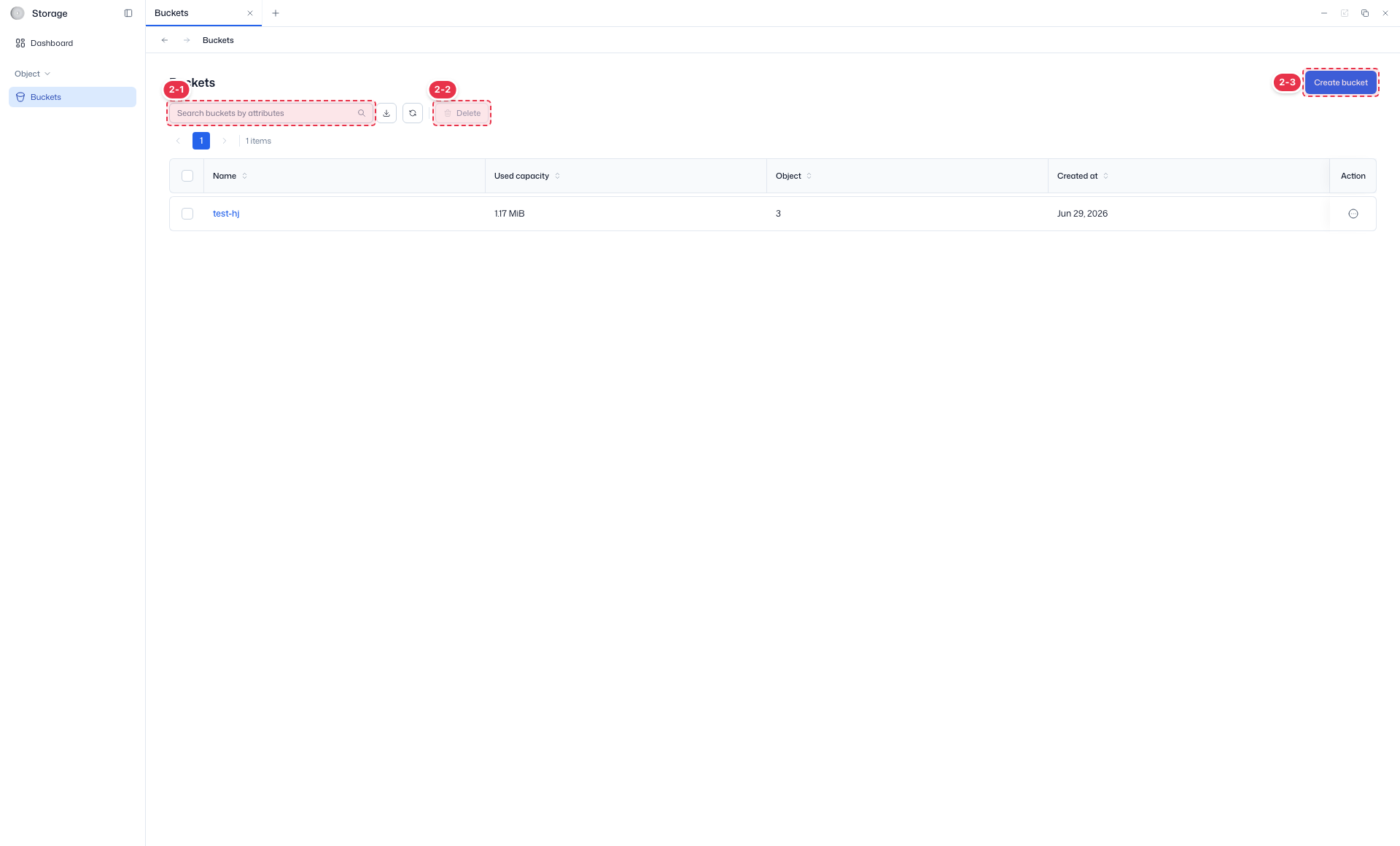
| No. | Feature | Item | Description |
|---|---|---|---|
| 2-1 | Search | Search buckets by attributes | · Filters buckets by attributes such as name. |
| 2-2 | Delete selected | Delete | · Deletes the buckets selected with the checkboxes (disabled when nothing is selected). |
| 2-3 | Create bucket | Create bucket | · Goes to the page for creating a new bucket. |
Bucket list table
The list of created buckets.
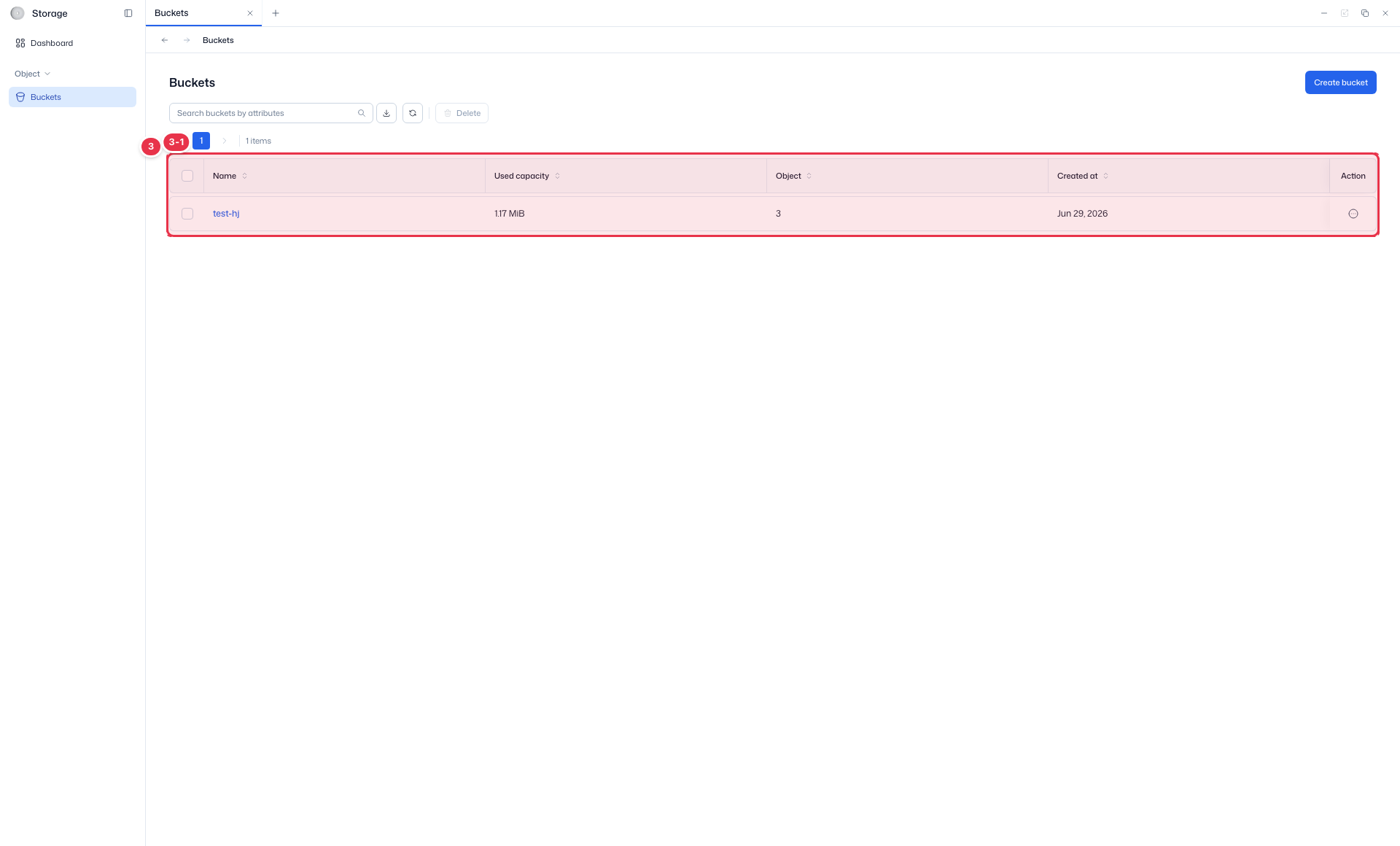
| No. | Feature | Item | Description |
|---|---|---|---|
| 3-1 | List columns | Name | Bucket name (click to open the details). |
| Used capacity | Capacity used by the bucket. | ||
| Object | Number of stored objects. | ||
| Created at | Bucket creation date. | ||
| Action | Row menu: Edit and Delete. |
Create Bucket
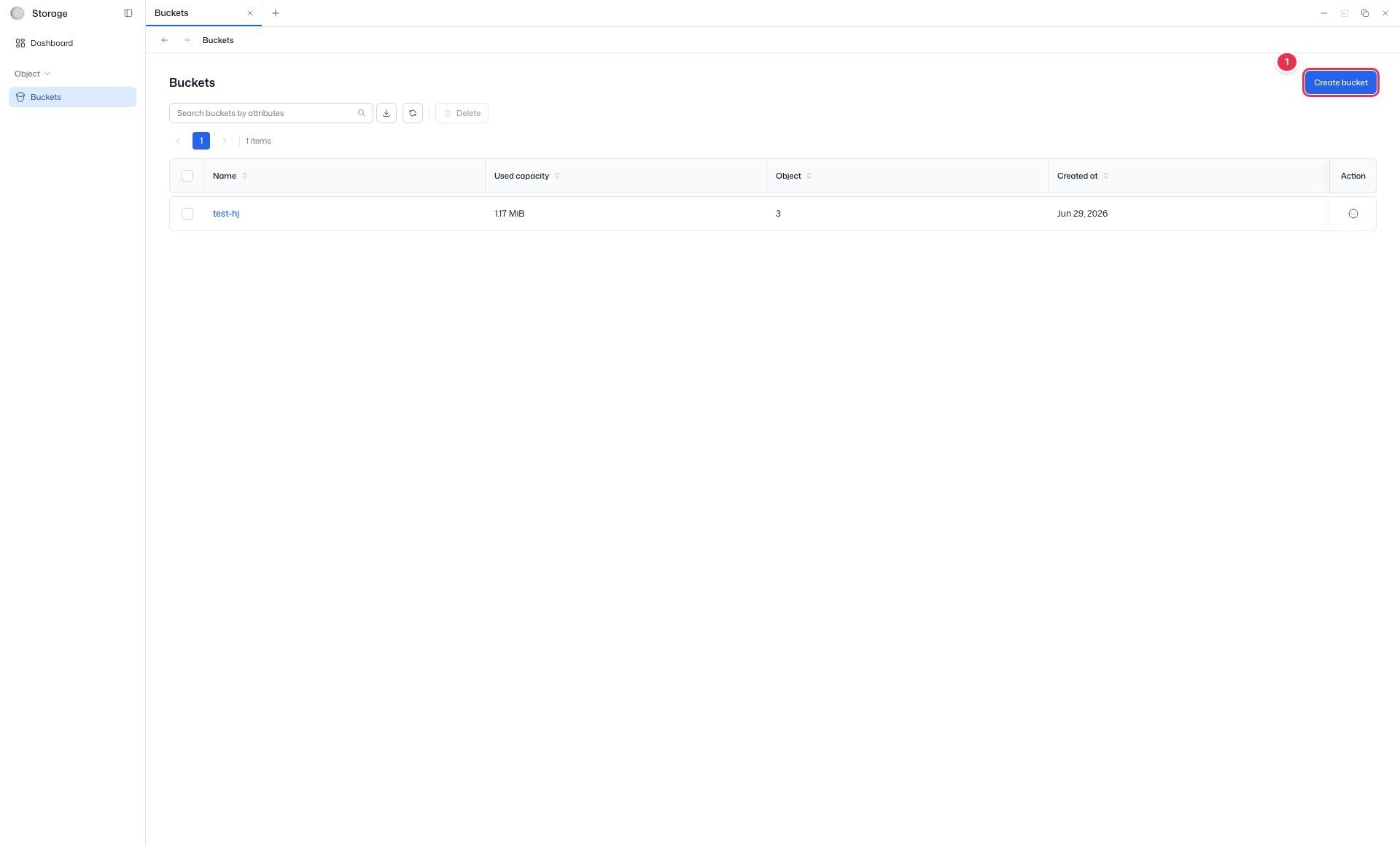
Create button
Click to go to the bucket creation page.
Bucket creation form
Fill in the steps in the order Basic information → Settings → Policy, clicking Next after each. The Summary on the right marks finished steps, and Create is enabled only after all three.
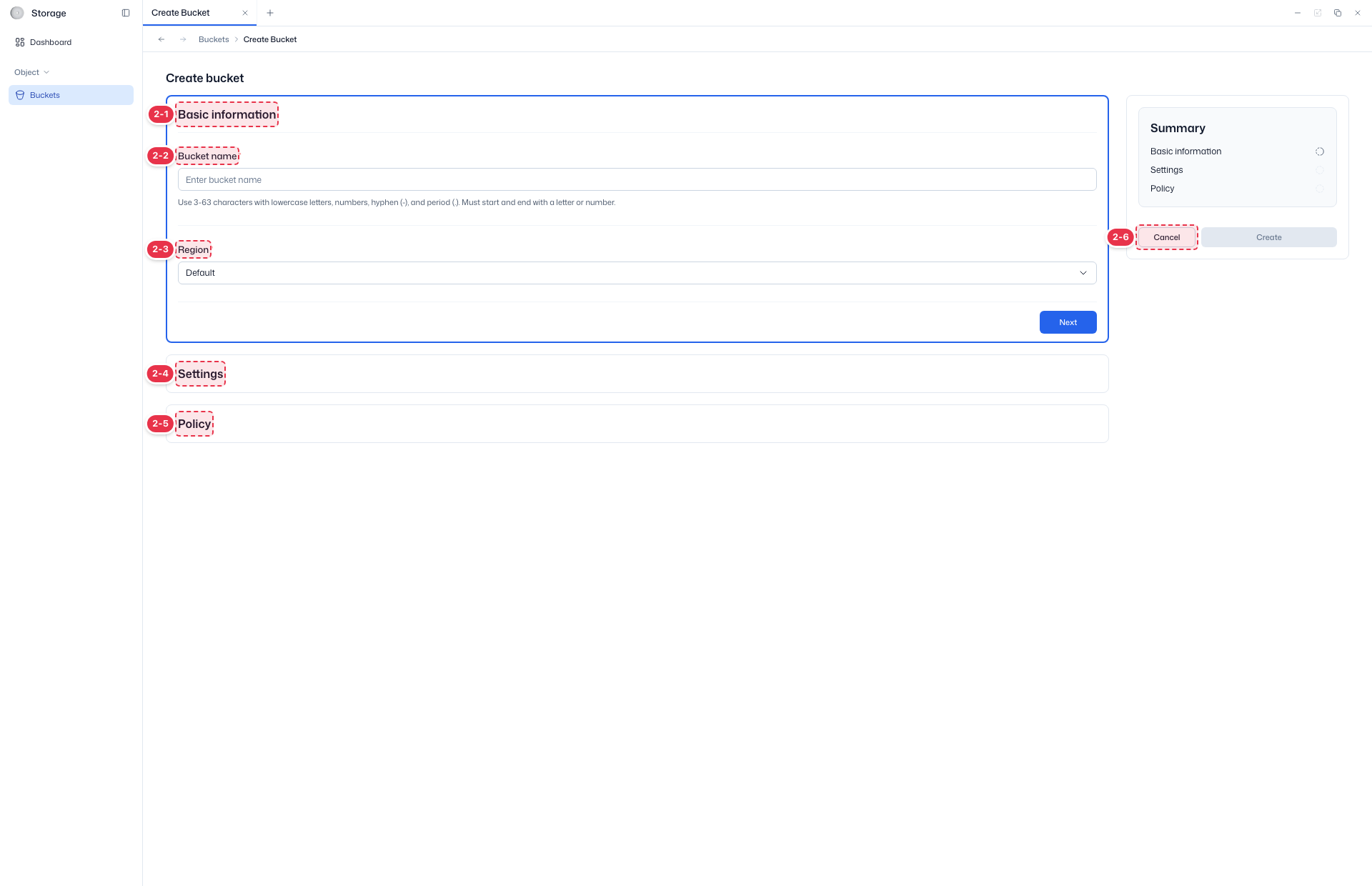
| No. | Feature | Item | Description |
|---|---|---|---|
| 2-1 | Basic information | Basic information | · The step for required information such as the bucket name and region. |
| 2-2 | Bucket name | Bucket name * | · 3–63 characters using only lowercase letters, numbers, hyphens (-), and periods (.). Must start and end with a lowercase letter or number. Cannot be changed after creation. |
| 2-3 | Region | Region * | · The region for the bucket (currently fixed to default). |
| 2-4 | Settings | Settings | · The step for object locking, tags, and the placement target (opens when you click Next on the previous step). |
| 2-5 | Policy | Policy | · The step for access policies such as the bucket policy (JSON) and ACL. |
| 2-6 | Cancel / Create | Cancel / Create | · Create: creates the bucket (enabled after all three steps). Cancel: returns to the list. |
The create screen has three steps: Basic information → Settings → Policy. Fill in a step and click Next; that step collapses and the next one opens. The Summary on the right marks each finished step, and the Create button is enabled only after you have gone through all three.
- Click Create bucket on the bucket list.
- In Basic information, enter the bucket name and click Next.
- In Settings, set object locking, tags, and the placement target, then click Next. If there is nothing to change, just click Next.
- In Policy, set the bucket policy and ACL, then click Next. If there is nothing to change, just click Next.
- Click Create under the Summary on the right.
You can reopen a finished step with its Edit button. If you click Cancel or try to leave while entering values, an "Unsaved changes" confirmation appears.
Basic information
| Field | Required | Description |
|---|---|---|
| Bucket name | ✓ | Unique bucket name. Follows the name rules below. |
| Region | ✓ | Region for the bucket. Currently fixed to default, so there is nothing to choose. |
Name Rules
- 3-63 characters
- Only lowercase letters, numbers, hyphens (
-), and periods (.) - Must start and end with a lowercase letter or number
- No spaces and no consecutive periods (
..)
Warning
Bucket names must be unique and cannot be changed after creation.
Settings
| Field | Description |
|---|---|
| Object locking | A write-once-read-many (WORM) lock that prevents objects from being deleted or overwritten for a set period. Off by default. When turned on, Mode and Days are required. It can only be set at creation and cannot be changed later. |
| Tags | Add key-value pairs with Add tags. |
| Placement target | The storage type for objects: nvme (default) or hdd. You can move to the next step without choosing. It cannot be changed after creation. |
When object locking is on, you set the following.
| Item | Description |
|---|---|
| Mode | Compliance or Governance. Hover over the info icon next to each mode for an explanation. |
| Days | The default retention period applied to newly placed objects. 1-36500 days |
Versioning and MFA delete
Versioning and MFA delete are not on the create screen. Turn them on in Edit Bucket after creating the bucket.
Policy
| Field | Description |
|---|---|
| Bucket policy | Enter the bucket access policy as JSON. The default is the empty policy {}; Clear removes what you entered. |
| ACL | Choose a Grantee and Permissions. The default is Owner with Full control. |
ACL options: the permissions you can choose depend on the grantee.
| Grantee | Available permissions |
|---|---|
| Owner | Full control |
| Everyone | Read / Read and write |
| Authenticated user | Read |
Bucket Details
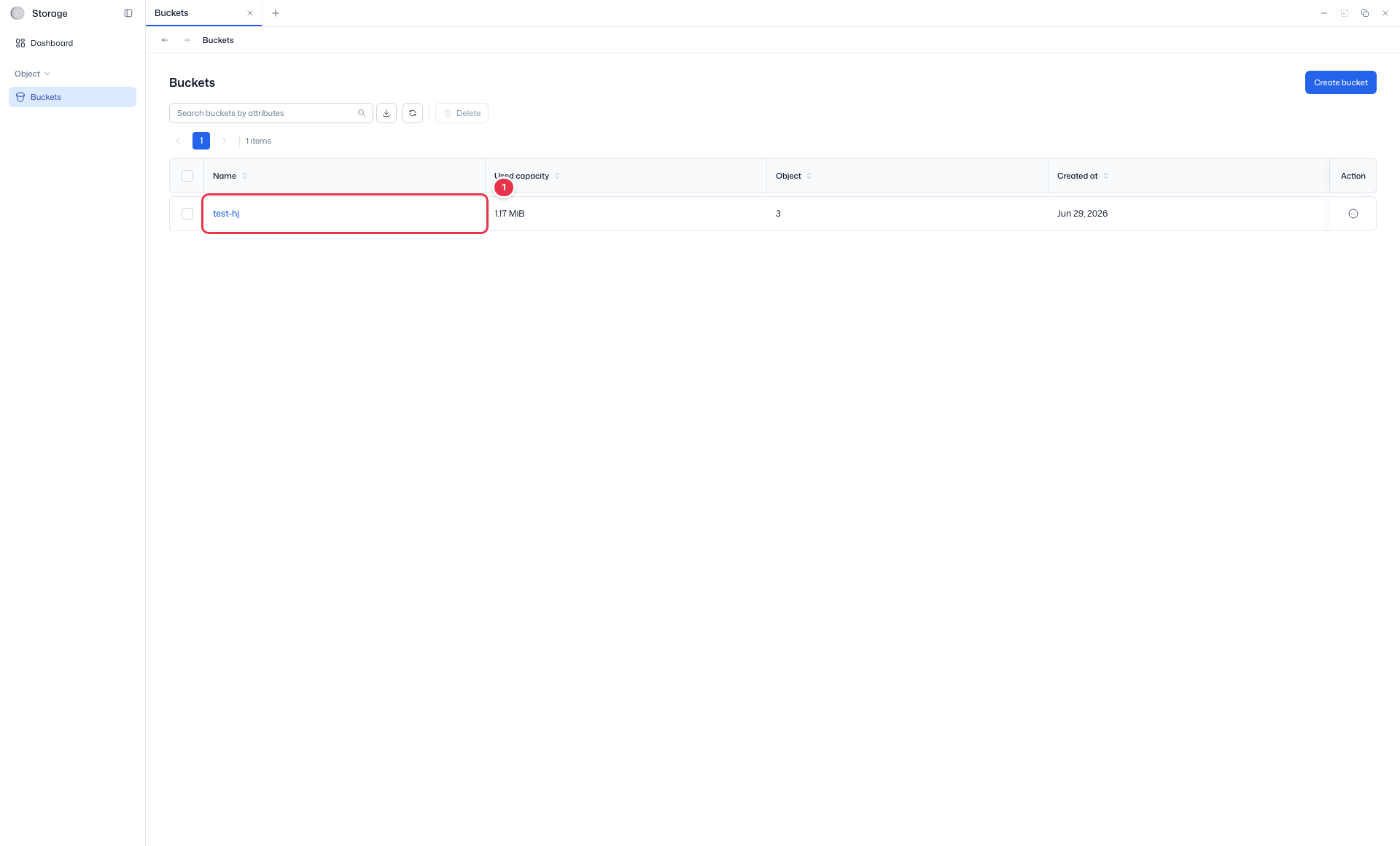
Click a bucket name in the list to open its details. The top shows a summary of the used capacity, object count, and creation time with Edit and Delete buttons, and below are the Details / Policies / Objects tabs.
Open the details (click the name)
Click a bucket name in the list to open its details.
Bucket details (tabs)
View and manage the bucket summary, details, policies, and objects.
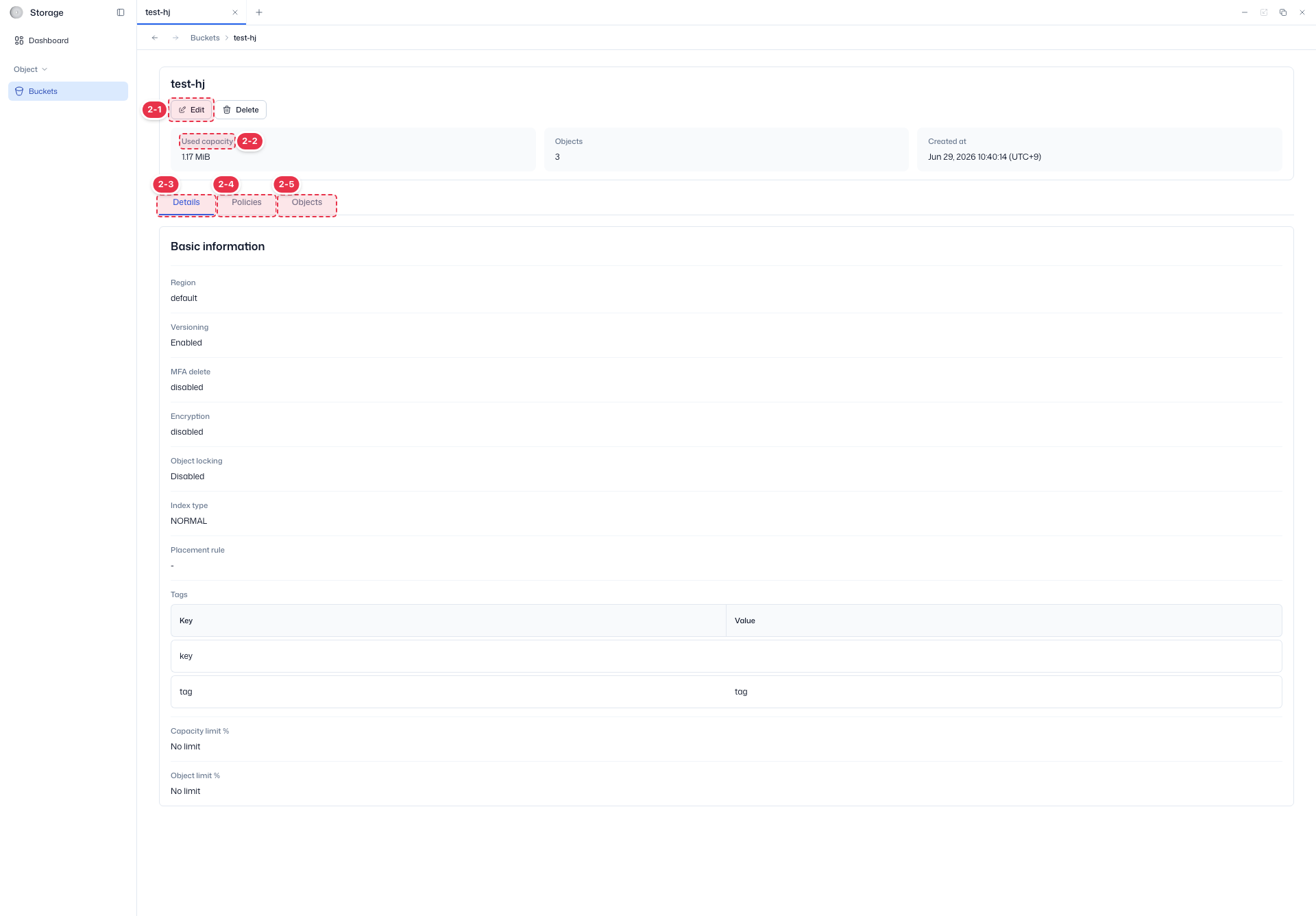
| No. | Feature | Item | Description |
|---|---|---|---|
| 2-1 | Edit / Delete | Edit / Delete | · Edit: change the bucket settings. Delete: opens the bucket deletion dialog. |
| 2-2 | Summary cards | Used capacity · Objects · Created at | · A summary of the bucket usage, object count, and creation time. |
| 2-3 | Details tab | Details | · Basic information such as region, versioning, object locking, MFA delete, encryption, index type, placement rule, tags, and capacity/object limits. |
| 2-4 | Policies tab | Policies | · View the bucket policy (JSON), lifecycle, replication policy, and ACL (grantee/permissions). |
| 2-5 | Objects tab | Objects | · Create, upload, download, move, and delete the objects (files) and folders in the bucket. |
| Tab | Contents |
|---|---|
| Details | Region, versioning, MFA delete, encryption, object locking, index type, placement rule, tags, capacity limit %, object limit % |
| Policies | Bucket policy (JSON), lifecycle, replication policy, and ACL (grantee / permissions). View only. |
| Objects | Manage the objects (files) and folders in the bucket. See Manage Objects. |
Edit Bucket
Open it from the row action menu in the list or with the Edit button on the detail screen. The edit screen has two areas, Settings and Policy; click Edit on an area to change its values.
| Area | Field | Editable | Notes |
|---|---|---|---|
| — | Bucket name | ✕ | Cannot be changed after creation (display only) |
| Settings | Versioning | ✓ | Keeps previous versions of objects uploaded with the same key. |
| Settings | MFA delete | ✓ | Can be turned on only while versioning is on. You enter the MFA token details when turning it on. |
| Settings | Tags | ✓ | |
| Policy | Bucket policy, ACL | ✓ | Entered the same way as at creation. |
Object locking and the placement target do not appear on the edit screen. The values set at creation are kept.
Manage Objects
On the Objects tab of the bucket details, view the objects (files) and folders in the bucket and upload, download, and delete them.
Folder navigation
- A folder tree on the left of the tab lets you move by clicking a folder. The tree can be collapsed.
- The current location is shown as a path above the list.
Object list
| Column | Description |
|---|---|
| Name (= key) | Object key (file name or folder name) |
| Owner | Owner |
| Type | file or folder |
| Size | Object size. - for folders |
| Storage class | For example, STANDARD |
| ETag | Identifier of the object contents. - for folders |
| Last modified | Last modification time |
| Action | Row action menu |
Top actions
| Action | What it does |
|---|---|
| Create folder | Enter a folder name and choose where (the parent folder) to create it. |
| Create object | Choose the location, then pick what to upload with Choose file or Choose folder. You can add tags while uploading. |
| Download objects | Downloads the objects selected with the checkboxes. |
| Delete | Deletes the objects selected with the checkboxes. Disabled when nothing is selected. |
Row actions
| Target | Action | Description |
|---|---|---|
| File | Edit file | Changes the file name and tags. |
| File | Copy S3 uri | Copies the address in the form s3://{bucket}/{key}. |
| File | Copy URL | Copies the HTTP address. |
| File | Move objects | Moves it to another folder. |
| File | Download | Downloads the file. |
| File | Delete | Permanently deletes the file. This cannot be undone. |
| Folder | Edit folder | Edits the folder information. |
| Folder | Move folder | Moves it under another folder. |
| Folder | Download | Downloads the objects in the folder. |
| Folder | Delete | Deletes the folder. If it is not empty, a warning says all objects in it will be deleted too; this cannot be undone. |
Delete Bucket
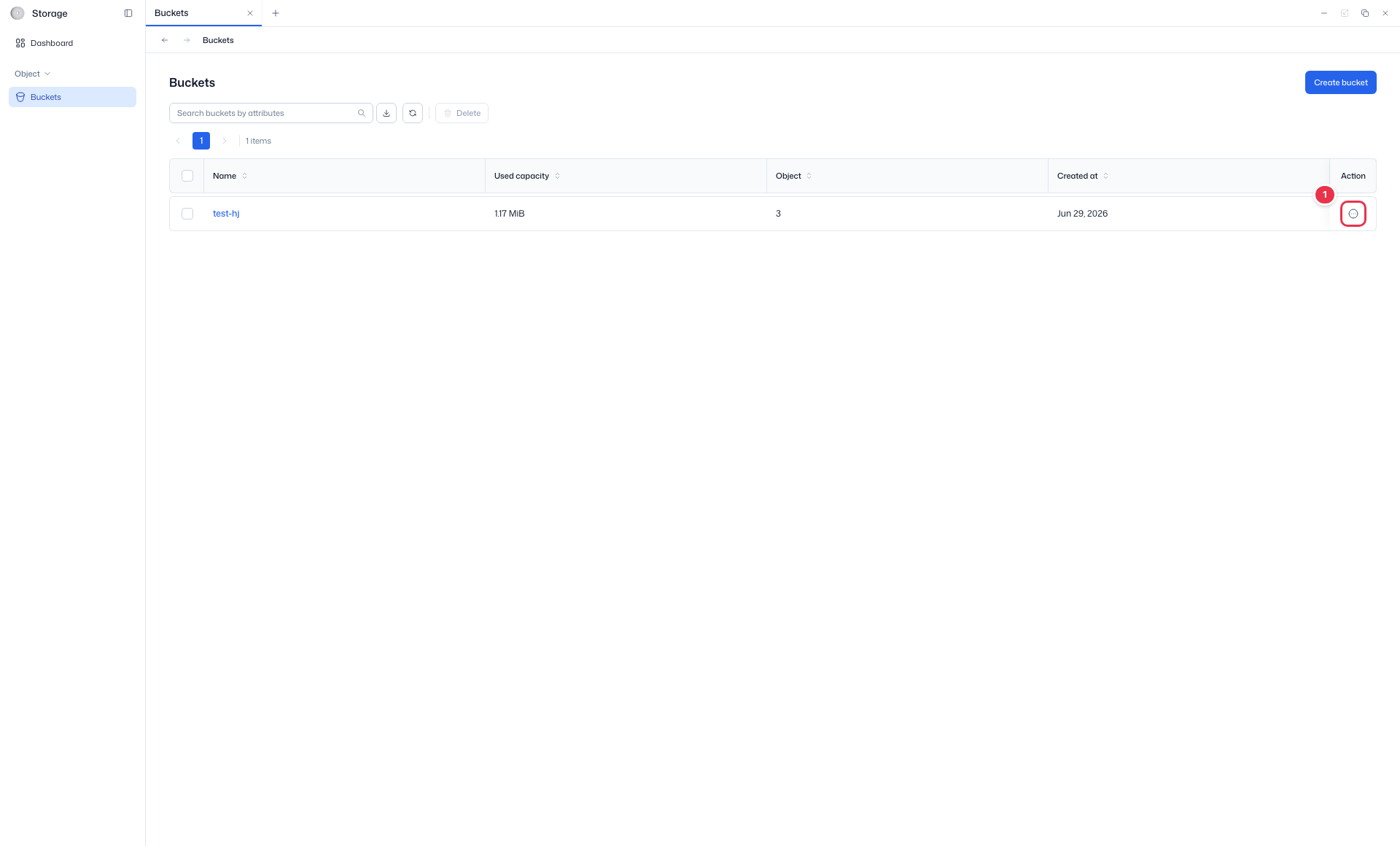
- In the bucket list, open the Action (⋯) menu on the bucket row and choose Delete (or use the Delete button on the detail screen).
- Check the bucket in the confirmation dialog and click Delete.
Open delete (row action)
Choose Delete in the row action (⋯) menu (menu: Edit / Delete).
Delete confirmation dialog
Deletes the bucket and every object stored in it. This cannot be undone.
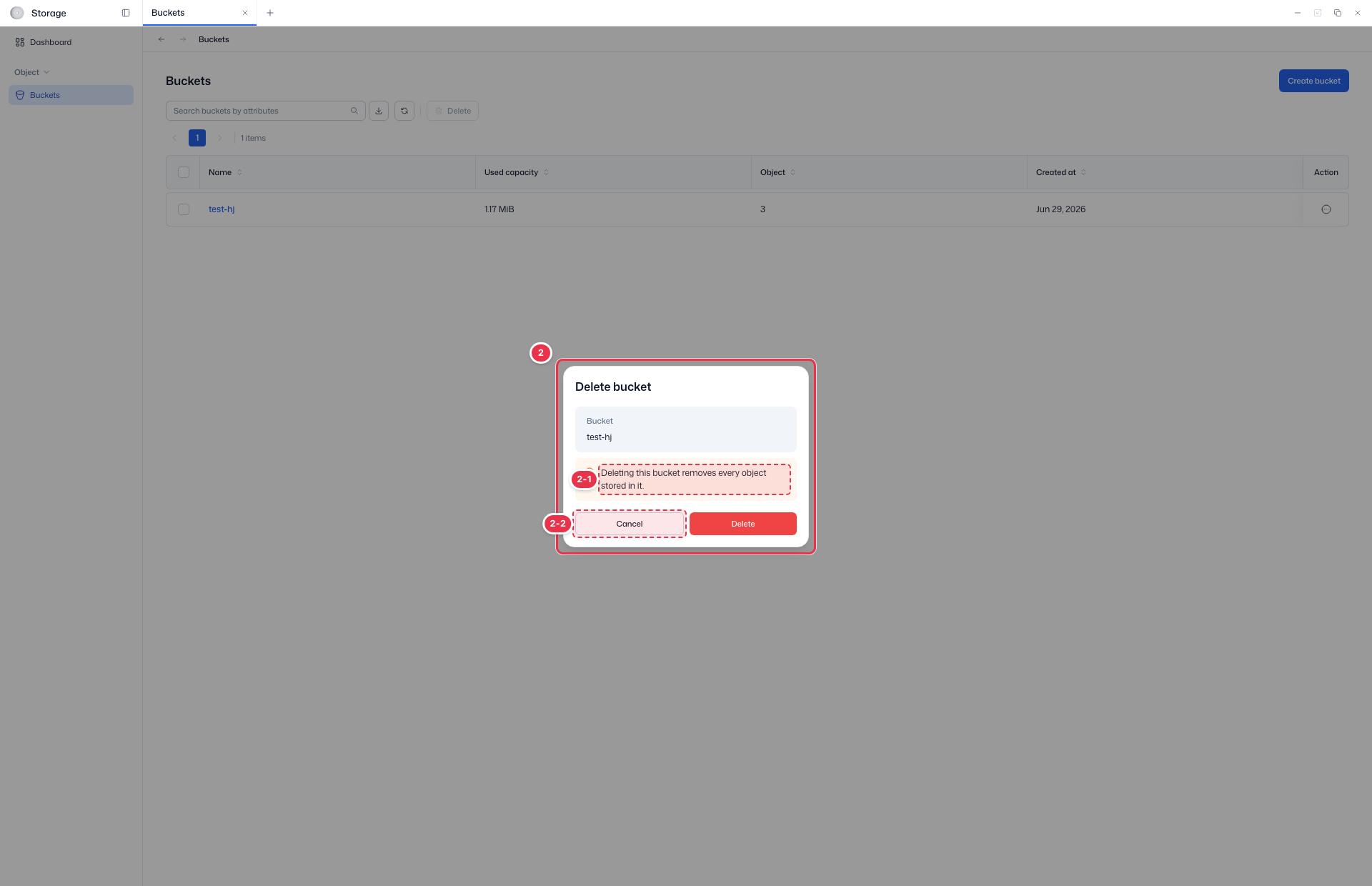
| No. | Feature | Item | Description |
|---|---|---|---|
| 2-1 | Delete notice | Target bucket and warning | · The bucket to delete and the warning that its objects are deleted too. |
| 2-2 | Cancel / Delete | Cancel / Delete | · Delete: deletes permanently. Cancel: closes the dialog. |
Danger
Deleting a bucket deletes every object stored in it, and this cannot be undone.