

File System (System Admin)
Create and manage CephFS-based file systems. Subvolumes, snapshots, schedules, and credentials provide POSIX-compatible file storage.
- Navigation path: Storage Admin › File › File systems
- Search:
Search file systems by attributes(default filter key: Name)
List Screen
Sidebar (SNB)
Use the left sidebar to move to each Storage Admin screen (Cluster·Block·File·Object·Monitoring).
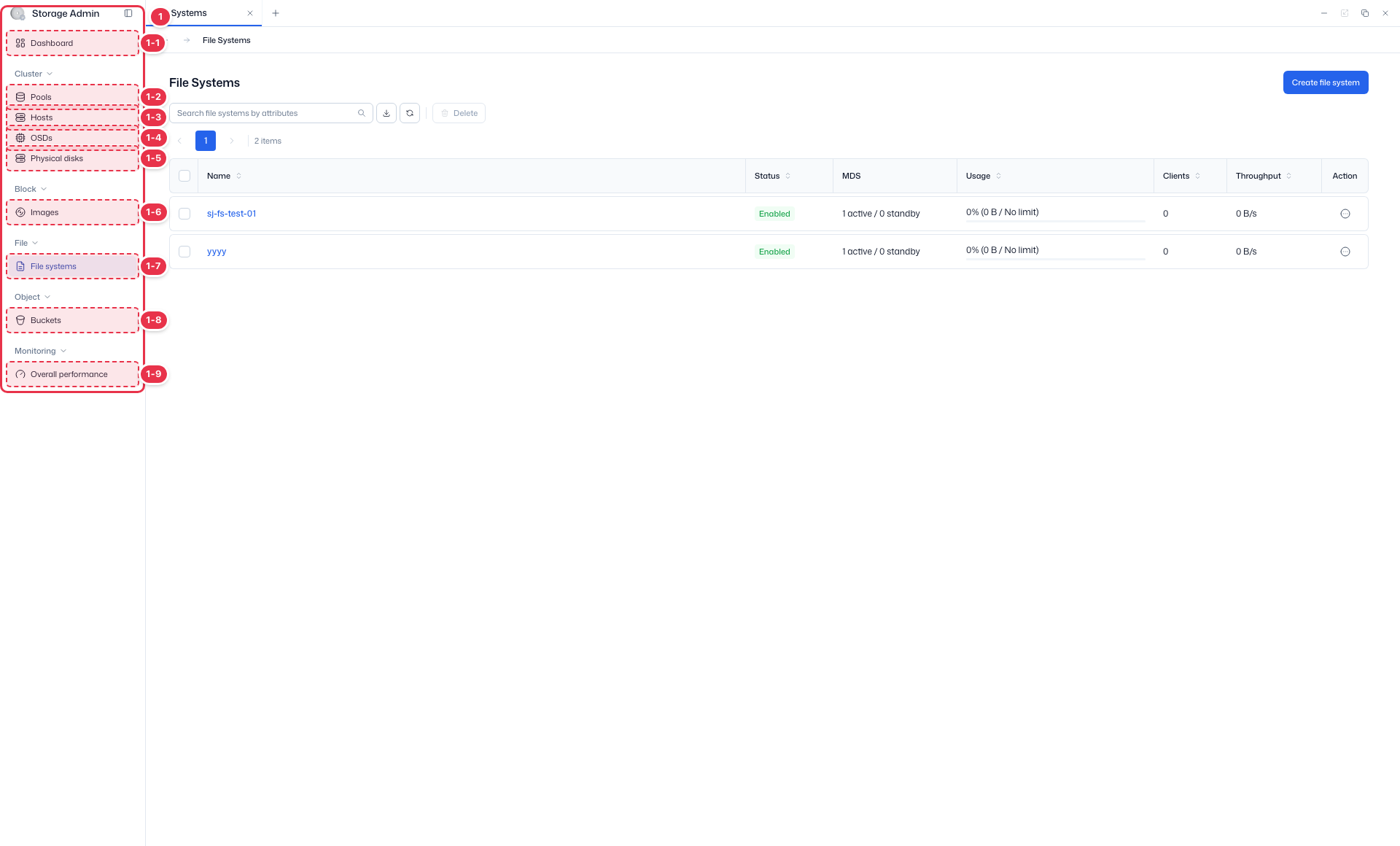
| No. | Feature | Item | Description |
|---|---|---|---|
| 1-1 | Dashboard | Dashboard | · Inventory·Capacity·Cluster utilization summary. |
| 1-2 | Pools | Pools | · View Ceph storage pools·PGs. |
| 1-3 | Hosts | Hosts | · Storage node hardware·OSD configuration. |
| 1-4 | OSDs | OSDs | · Object Storage Daemon status·capacity. |
| 1-5 | Physical disks | Physical disks | · View physical disks·Identify. |
| 1-6 | Images | Images | · RBD block images. |
| 1-7 | File systems | File systems | · CephFS file systems. |
| 1-8 | Buckets | Buckets | · System-wide S3 buckets. |
| 1-9 | Overall performance | Overall performance | · Pools·OSDs·Hosts·Images performance metrics. |
Search · Create
Search file systems or create a new one.
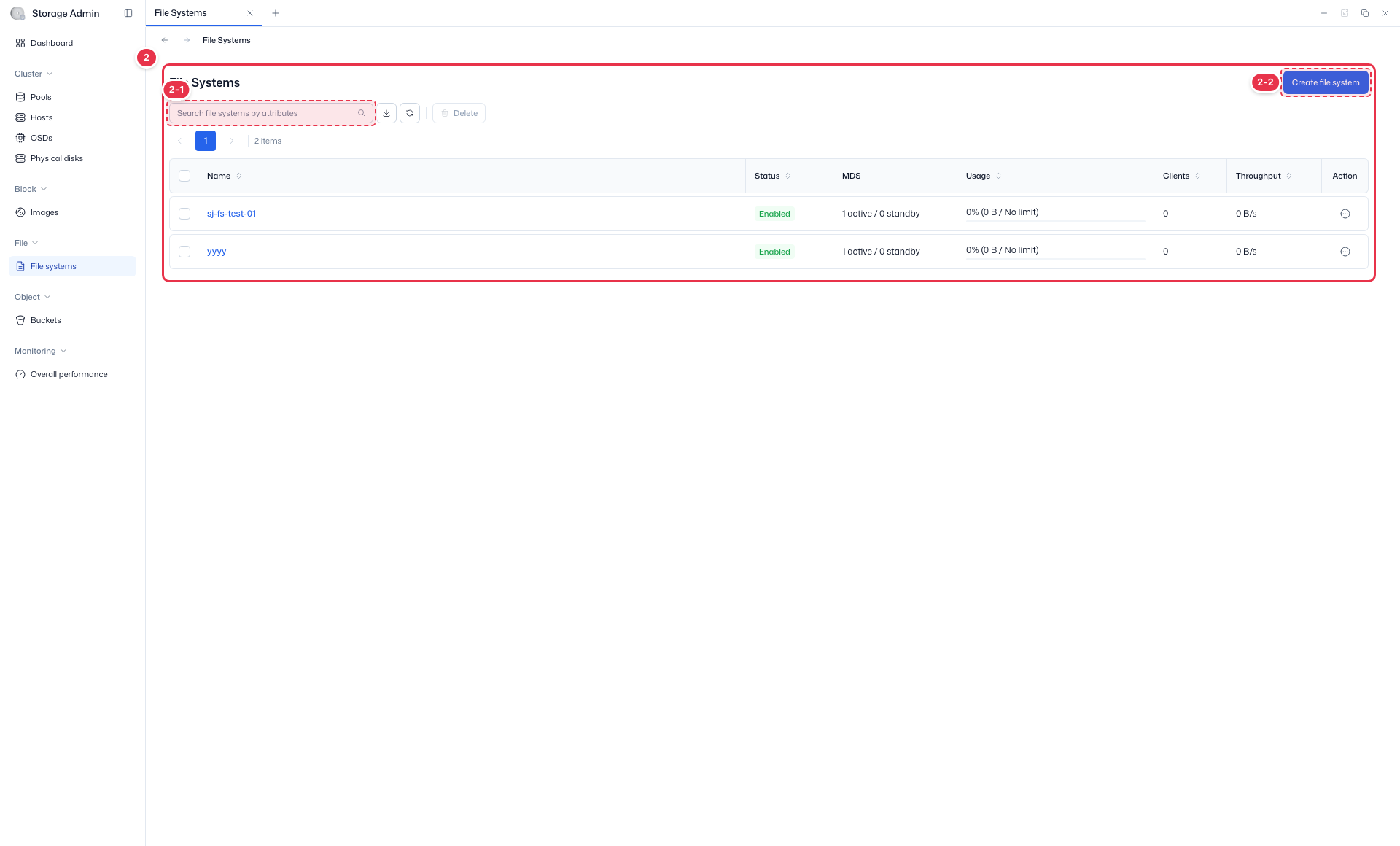
| No. | Feature | Item | Description |
|---|---|---|---|
| 2-1 | Search | Search | · Search by name, etc. |
| 2-2 | Create | Create file system | · Open the new CephFS file system creation drawer. |
List table
CephFS file system list.
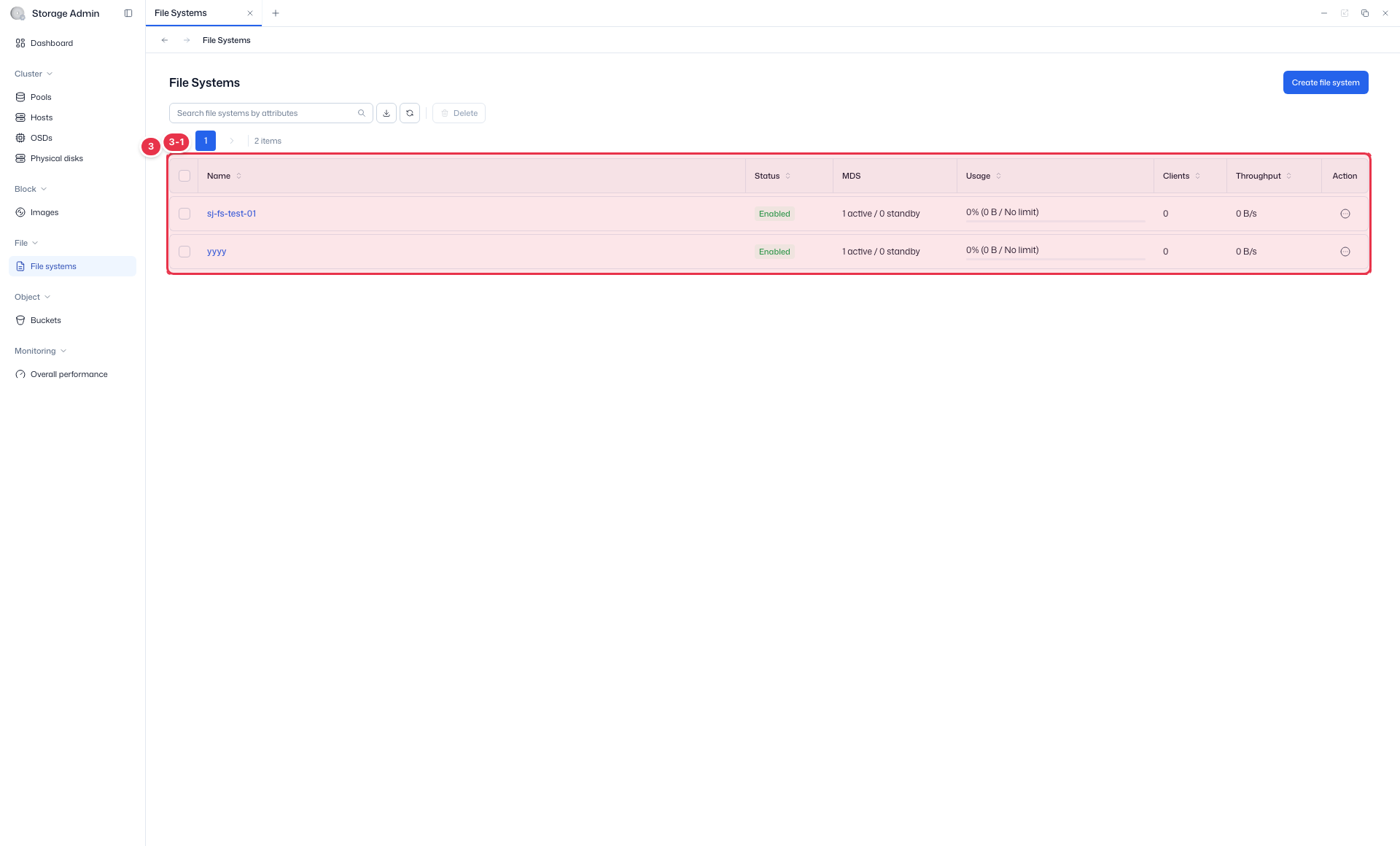
| No. | Feature | Item | Description |
|---|---|---|---|
| 3-1 | Columns | Name / Status | File system name / status. |
| MDS | Metadata Server status. | ||
| Usage / Clients / Throughput | Usage·connected clients·throughput. | ||
| Action | Authorize / Edit / Delete. |
Default sort is Name ascending. Search filters support Name (text input) and Status (select: Enabled/Disabled).
Deletion Constraint
File systems in Enabled (Active) state cannot be deleted (row action Delete disabled). Shut down the file system first to disconnect all clients, then delete it. — "Shut down the file system and disconnect all clients before deleting."
Create
Create a new CephFS file system by specifying a name, Placement, and hosts.
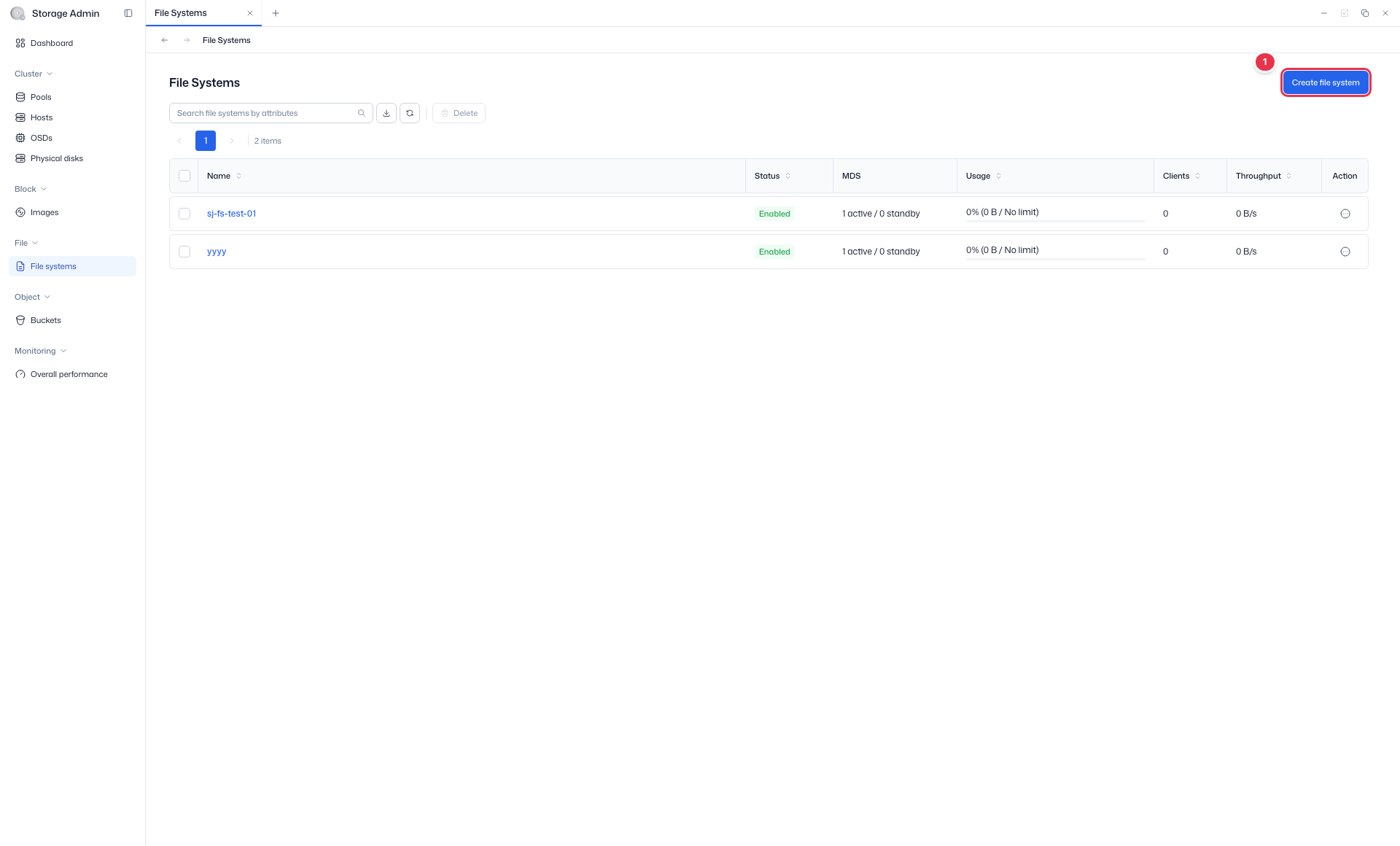
Create entry
Clicking opens the creation drawer.
Create drawer
Create a CephFS file system by specifying name·placement·hosts.
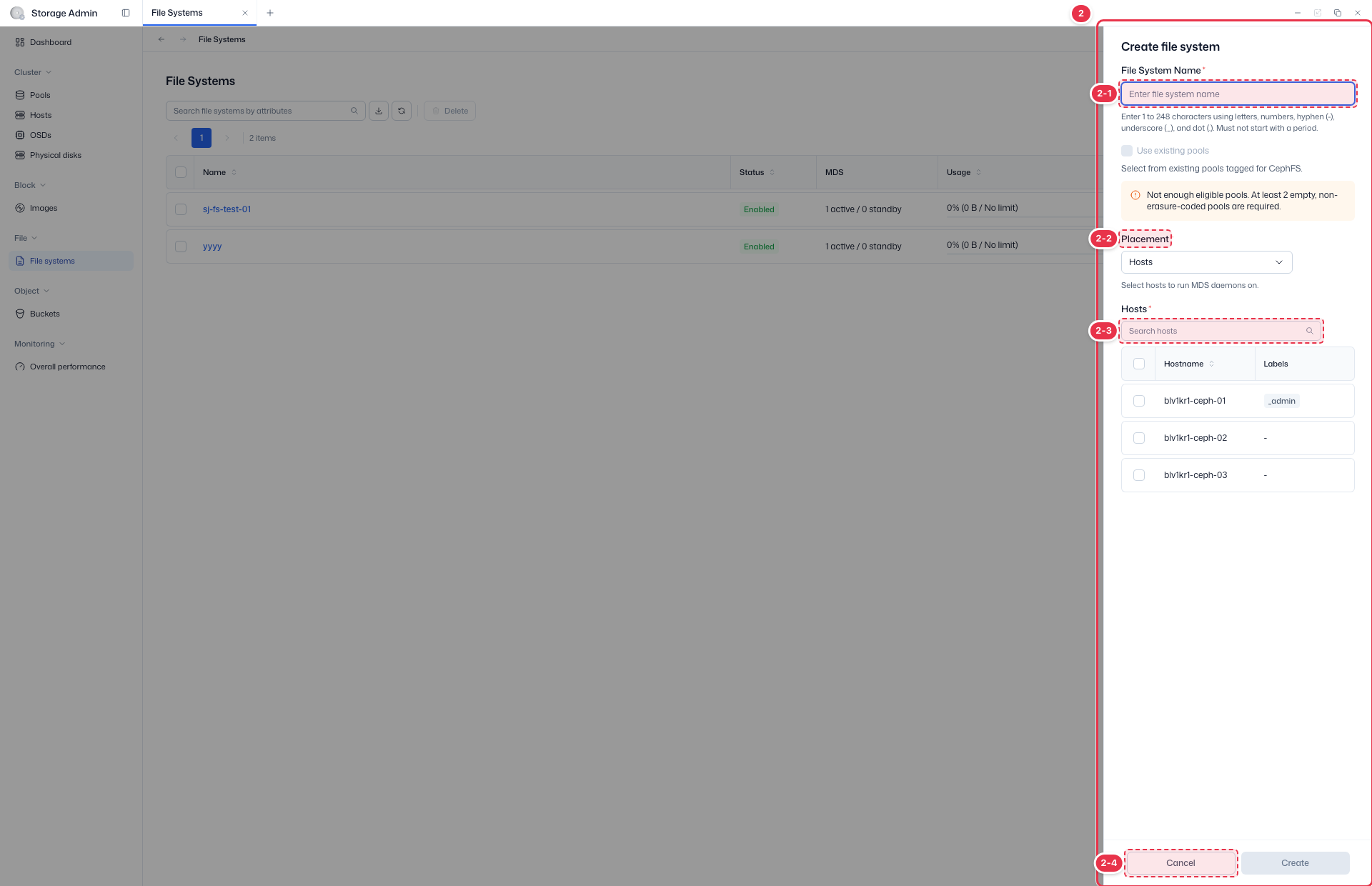
| No. | Feature | Item | Description |
|---|---|---|---|
| 2-1 | Name | File System Name * | · File system name. |
| 2-2 | Placement | Placement * | · MDS placement method (including whether to use an existing pool). |
| 2-3 | Hosts | Hosts * | · Select the hosts to place the MDS on. |
| 2-4 | Create / Cancel | Create / Cancel | · Create: create. Cancel: close. |
Authorize
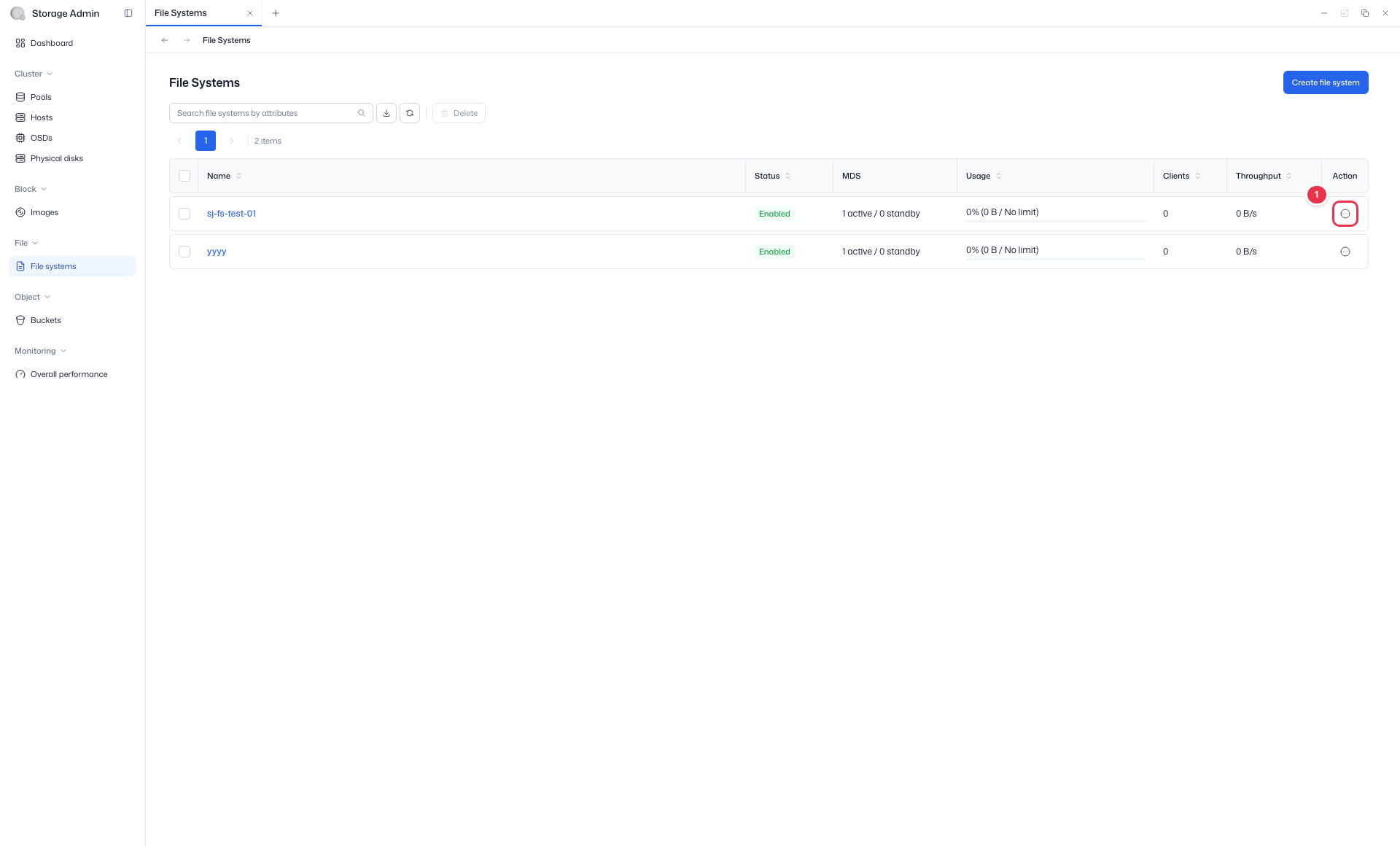
Use the row action Authorize to grant directory access permissions to a specific user (CephX).
Authorize entry (row action)
Select Authorize from the row menu.
Authorize drawer
Grant a specific user access to a file system directory.
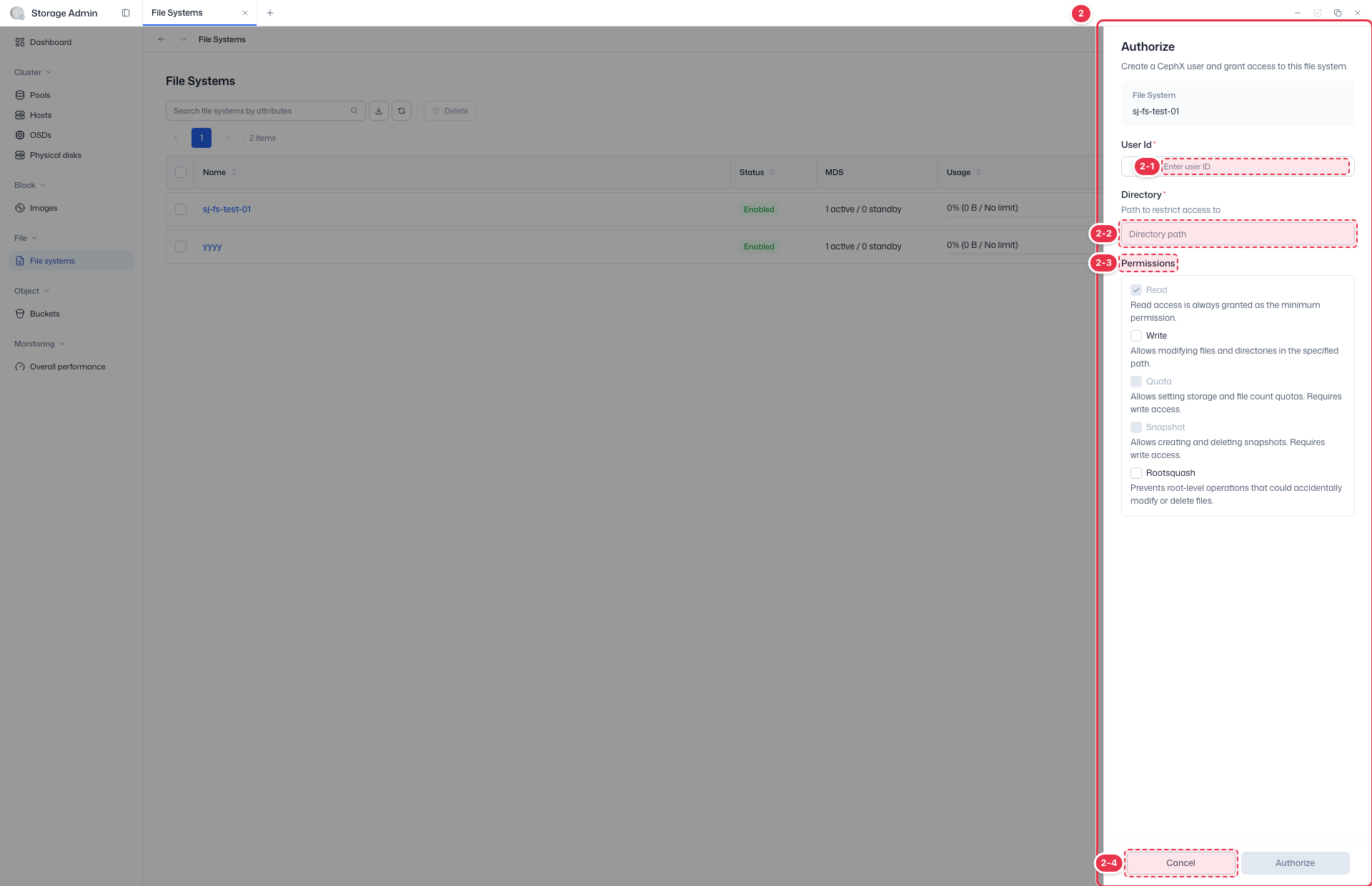
| No. | Feature | Item | Description |
|---|---|---|---|
| 2-1 | User | User Id * | · User ID to grant permission to. |
| 2-2 | Directory | Directory * | · Directory path to allow access to. |
| 2-3 | Permissions | Permissions | · Read·Write·Quota·Snapshot·Rootsquash permission options. |
| 2-4 | Authorize / Cancel | Authorize / Cancel | · Authorize: grant permission. Cancel: close. |
Edit
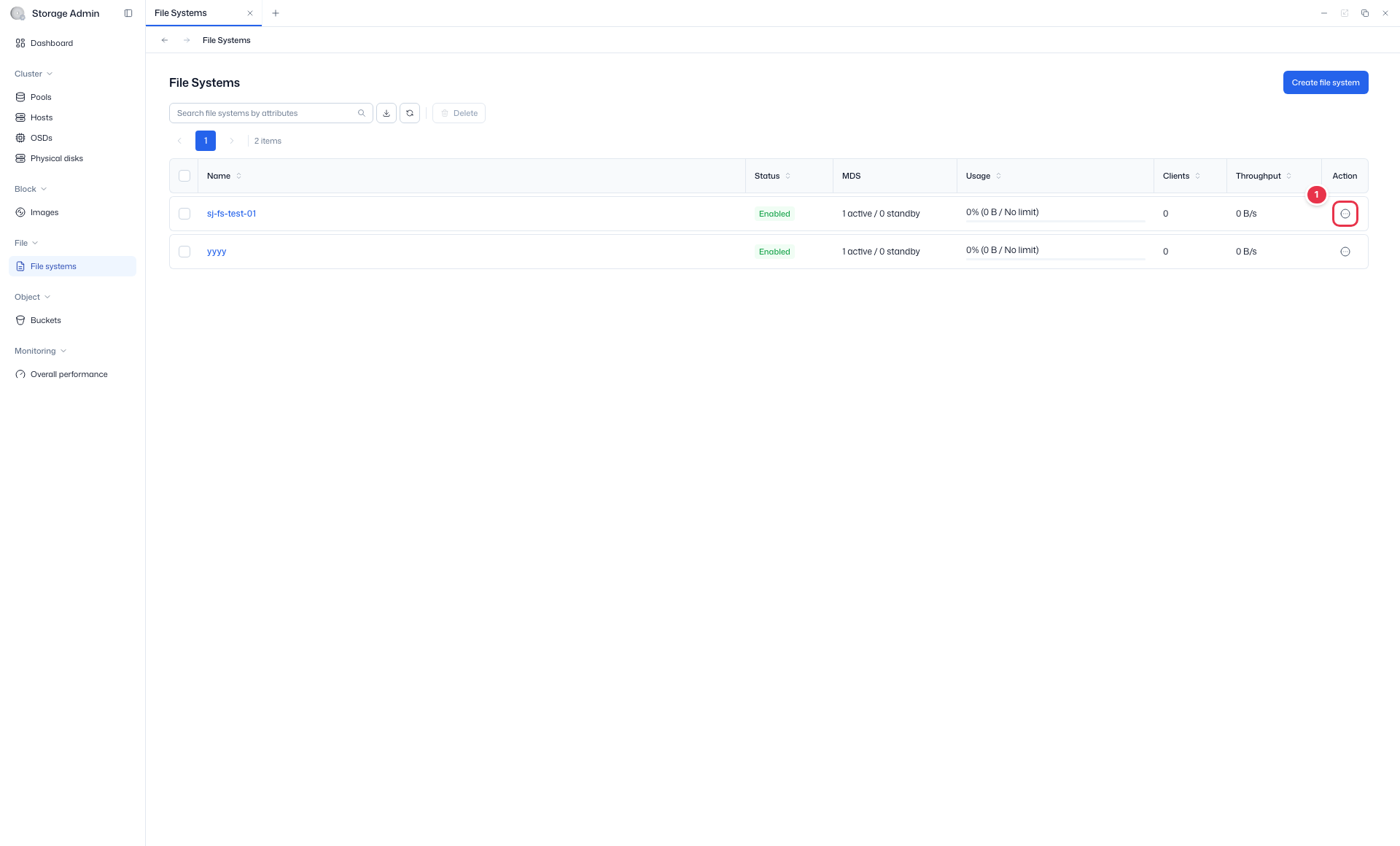
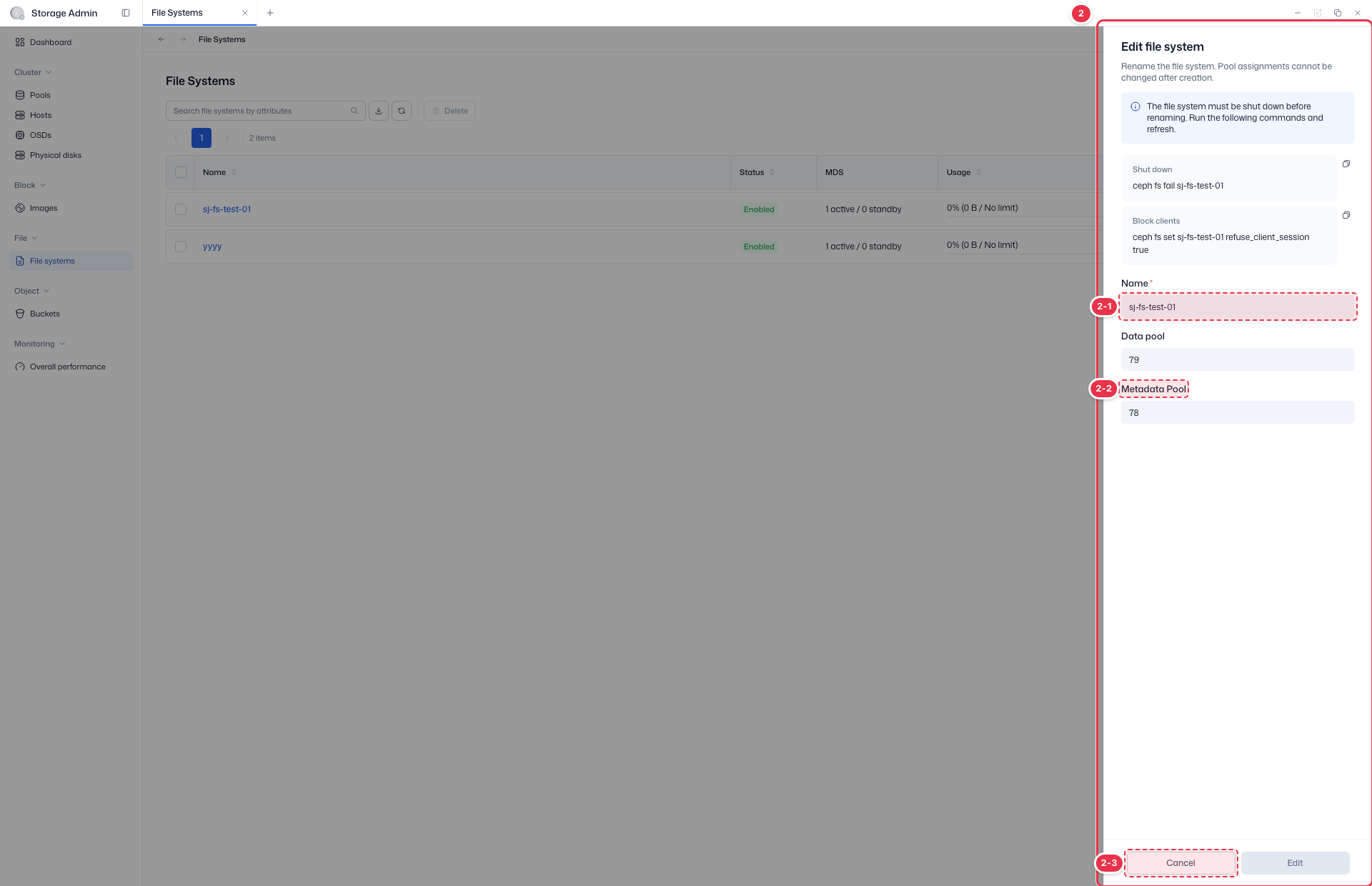
Use the row action Edit to view and modify the file system name and associated pools (Data/Metadata).
Edit entry (row action)
Select Edit from the row menu.
Edit drawer
Review and edit the file system name and linked pools (Data/Metadata).
| No. | Feature | Item | Description |
|---|---|---|---|
| 2-1 | Name | Name * | · File system name. |
| 2-2 | Pool | Data pool / Metadata Pool | · Linked data·metadata pools. |
| 2-3 | Save / Cancel | Save / Cancel | · Save or close. |
File System Detail
Click a file system name to open the detail screen.
Header Information
| Item | Description |
|---|---|
| Status | Enabled (green badge) / Disabled (gray badge) |
| Usage | ProgressBar + n% (used/total) |
| MDS | {active} active / {standby} standby |
| Clients | Number of connected clients |
| Created at | Creation timestamp |
Use the Edit / Delete buttons at the top to edit or delete.
The detail screen consists of eight tabs.
| Tab | Description |
|---|---|
| Details | MDS Ranks, Standbys, Pools information |
| Directories | Per-directory quotas and snapshots |
| Subvolumes | Create and manage subvolumes |
| Snapshots | File system-level snapshots |
| Schedules | Automatic snapshot schedules |
| Clients | Connected client list |
| Credentials | CephX user permissions and mount guide |
| Performance | Real-time performance metrics |
Details Tab
View the file system's MDS configuration and pool information.
Ranks Section
| Column | Description |
|---|---|
| Rank | MDS rank number (sortable) |
| State | MDS state (e.g., active, standby). Displayed as badge |
| Daemon | Daemon name (sortable) |
| Activity | Work description |
| Dentries | Directory entry cache count (sortable) |
| Inodes | Inode cache count (sortable) |
| Dirs | Directory count (sortable) |
| Caps | Issued capability count (sortable) |
Default sort is Rank ascending. Shows 5 rows per page.
Standbys Section
| Column | Description |
|---|---|
| Daemon | Standby MDS daemon name |
No default sort (server return order). Shows 5 rows per page.
Pools Section
| Column | Description |
|---|---|
| Pool | Pool name (sortable) |
| Type | data or metadata |
| Size | Total capacity (sortable, e.g., 70.2 TiB) |
| Used | Used capacity (sortable, e.g., 17.6 TiB) |
| Usage | ProgressBar + percentage (e.g., 25%) |
Default sort is Pool name ascending. Shows 5 rows per page.
Directories Tab
Manage per-directory quotas and snapshots.
Quotas
| Item | Description |
|---|---|
| Max bytes | Maximum bytes (0 = no limit → "No limit") |
| Max files | Maximum file count (0 = no limit → "No limit") |
Use the Edit quota button to change quotas (opens drawer).
Snapshots
Create and manage directory-level snapshots.
| Column | Description |
|---|---|
| Name | Snapshot name (sortable) |
| Path | Snapshot path |
| Created | Creation timestamp (sortable) |
Default sort is Created descending (newest first). Shows 10 rows per page.
Search filters: Name (text input), Path (text input), Created at (date range)
Subvolumes Tab
Create and manage subvolumes. A subvolume is an isolated volume within the file system with its own POSIX permissions and quotas.
| Column | Description |
|---|---|
| Name | Subvolume name (sortable) |
| Mode | POSIX permissions — displayed as 3 badges (e.g., owner: rwx, group: r-x, others: rw-) |
| Usage | Capacity utilization (ProgressBar + percentage, sortable). Shows ∞ when no total is set |
| Path | Mount path (monospace font + Copy button) |
| Data pool | Data pool name (sortable) |
| Created at | Creation timestamp (sortable) |
Default sort is creation date descending (newest first). Shows 10 rows per page.
Subvolume Actions
| Action | Description |
|---|---|
| Attach | Attach the subvolume (opens modal) |
| Mount command | Show the mount command in code font (copyable) |
| CephX key | Show the authentication key. Default masked → Show/Hide toggle. Copy button always copies the full key |
| Resize | Change subvolume size (opens drawer) |
| Delete | Delete the subvolume |
Caution
Subvolumes with existing snapshots cannot be deleted.
Tooltip: "Delete all snapshots before deleting this subvolume."
Mount command example:
sudo mount -t ceph :/{path} /mnt/{name} -o name=client.{fs},fs={fs}Snapshots Tab
Manage file system-level snapshots.
| Column | Description |
|---|---|
| Name | Snapshot name (sortable). Naming convention: {subvolume_name}-snap-yyyymmdd |
| Subvolume | Parent subvolume name |
| Pending clones | In-progress clone operations. Shows "No" badge when none, or clone name badges when present |
| Created | Creation timestamp (sortable) |
Default sort is Created descending (newest first). Shows 10 rows per page.
Snapshot Actions
| Action | Description |
|---|---|
| Create subvolume from snapshot | Create a new subvolume from a snapshot (opens drawer) |
| Delete | Delete the snapshot (shows modal) |
Schedules Tab
Manage automatic snapshot creation schedules.
| Column | Description |
|---|---|
| Subvolume | Target subvolume name (sortable) |
| Status | Active (green badge) / Inactive (gray badge) |
| Frequency | Snapshot creation interval (e.g., Every 1 day) |
| Start | Start time |
| Retention | Retention policy. Displayed as badges (e.g., daily: 7, weekly: 4) |
| Last run | Last execution time. Shows "-" when never run |
Default sort is Created at descending (newest first). Shows 10 rows per page.
Schedule Actions
| Action | Description |
|---|---|
| Create | Create a new schedule (opens drawer) |
| Edit | Edit an existing schedule (opens drawer) |
| Delete | Delete a schedule (shows modal) |
Clients Tab
View the list and status of clients connected to the file system.
Credentials Tab
View the CephX users (entities) authorized to access the file system, modify or revoke their permissions, and access the mount guide.
Search Filters
| Filter | Type |
|---|---|
| User ID | Text |
| Directory | Text |
Entering text without selecting a filter key automatically applies the User ID filter.
Table
| Column | Description |
|---|---|
| User ID | CephX entity name (client.<name> format, sortable) |
| Directory | Authorized CephFS directory path (monospace font + Copy button) |
| Permissions | Granted permissions as badges: Read, Write, Quota, Snapshot, Rootsquash |
| Key | CephX keyring value. Default masked. Show/Hide toggle. Copy button always copies the full key |
| Created | Creation timestamp (sortable) |
Default sort is User ID ascending (A→Z). Shows 10 rows per page.
Credentials Actions
| Action | Description |
|---|---|
| Authorize | Grant access permissions to a CephX user (opens drawer) |
| Mount guide | Show the mount guide modal |
| Edit | Edit permissions (opens drawer) |
| Delete | Delete the credential (shows confirmation modal) |
Credential Deletion
Deleting a credential interrupts all in-progress I/O for that user.
"Evicting this client interrupts all in-progress I/O."
Mount Guide Modal
Click the Mount guide action on a row in the Credentials tab to view mount information for that CephX user.
The modal displays the following information.
User ID — Selected CephX user ID (read-only)
ceph.conf — Cluster configuration (code block)
[global]
fsid = <cluster-fsid>
mon_host = <mon-addr-1>,<mon-addr-2>,<mon-addr-3>
Save to
/etc/ceph/ceph.confon the client machine.
Keyring — Full keyring file contents (code block)
[client.<vol_name>.<subvol_name>]
    key = <AQBx...==>
    caps mon = "allow r fsname=<vol_name>"
    caps mds = "allow rw fsname=<vol_name> path=/volumes/_nogroup/<subvol_name>/<uuid>"
    caps osd = "allow rw pool=cephfs.<vol_name>.data namespace=fsvolumens___nogroup_<subvol_name>"
Save to
/etc/ceph/ceph.client.<name>.keyringon the client machine (file permission600).
Keyring File Required
VM kernel mount will not work if the keyring file does not exist in /etc/ceph/. mount.ceph automatically finds the keyring file corresponding to the -o name= client ID at the standard path and reads the secret key.
Mount command — Three mount methods are provided as tabs.
| Tab | Method | Description |
|---|---|---|
| Kernel | mount -t ceph | Direct OSD distributed I/O, best performance. Requires ceph-common |
| FUSE | ceph-fuse | Alternative when kernel module/version constraints exist. Requires ceph-fuse |
| Kubernetes | CSI (ceph-csi-cephfs) | PV/PVC-based automation, static provisioning |
Each tab's code block is dynamically generated with the selected CephX user's information.
Mount Information
Share this information with the user who needs to mount the file system. For detailed setup instructions, see the mount guide documentation.
Access Restriction
Each keyring is restricted to its authorized directory. Attempting to mount an unauthorized path returns permission denied.
VM Mount — Kernel (mount -t ceph)
Prerequisites:
| Item | Requirement |
|---|---|
| OS | Linux (kernel 4.x+, Ubuntu 22.04 recommended) |
| Package | ceph-common (includes mount.ceph) |
| Network | MON 3300/6789, OSD 6800-7300 reachable |
| Auth files | /etc/ceph/ceph.conf · /etc/ceph/ceph.client.<vol>.<subvol>.keyring |
# Ubuntu / Debian
sudo apt install -y ceph-common

# RHEL / CentOS
sudo yum install -y ceph-common
Mount command:
sudo mkdir -p /mnt/${VOL_NAME}
sudo mount -t ceph \
  ${VOL_NAME}.${SUBVOL_NAME}@.${VOL_NAME}=/volumes/_nogroup/${SUBVOL_NAME}/${SUBVOL_UUID} \
  /mnt/${VOL_NAME} \
  -o name=${VOL_NAME}.${SUBVOL_NAME}
FSID can be omitted when
/etc/ceph/ceph.confincludesfsid.
Persistent mount (/etc/fstab):
<vol>.<subvol>@.<vol>=/volumes/_nogroup/<subvol>/<uuid> /mnt/<vol> ceph name=<vol>.<subvol>,noatime,_netdev 0 0VM Mount — FUSE (ceph-fuse)
Use when kernel mount is difficult due to kernel module/version constraints.
sudo mkdir -p /mnt/${VOL_NAME}
sudo ceph-fuse /mnt/${VOL_NAME} \
  --id ${VOL_NAME}.${SUBVOL_NAME} \
  --conf /etc/ceph/ceph.conf \
  --keyring /etc/ceph/ceph.client.${VOL_NAME}.${SUBVOL_NAME}.keyring \
  --client_fs ${VOL_NAME} \
-r /volumes/_nogroup/${SUBVOL_NAME}/${SUBVOL_UUID}| Option | Description |
|---|---|
--id | CephX client ID (without client.) |
--client_fs | CephFS FileSystem name |
-r | Restrict mount root to the subvolume path |
--keyring | Keyring path (can be omitted if at standard path) |
Pod Mount — Kubernetes CSI
In Kubernetes environments, use the ceph-csi-cephfs CSI driver for PV/PVC-based mounting.
Prerequisites:
| Item | Requirement |
|---|---|
| Kubernetes | K8s 1.25+ |
| CSI driver | ceph-csi-cephfs Helm chart (v3.14+) |
| Network | Worker nodes → MON/OSD reachable |
Secret creation:
apiVersion: v1
kind: Secret
metadata:
  name: csi-cephfs-secret
  namespace: ceph-csi-cephfs
type: Opaque
stringData:
  userID: "<vol_name>.<subvol_name>"
  userKey: "<key value>"
PV/PVC creation (static provisioning):
apiVersion: v1
kind: PersistentVolume
metadata:
  name: <subvol_name>
spec:
  capacity:
    storage: 10Gi
  accessModes: [ReadWriteMany]
  persistentVolumeReclaimPolicy: Retain
  csi:
    driver: cephfs.csi.ceph.com
    volumeHandle: <subvol_name>
    volumeAttributes:
      clusterID: "<cluster-fsid>"
      fsName: "<vol_name>"
      rootPath: "/volumes/_nogroup/<subvol_name>/<uuid>"
      staticVolume: "true"
    nodeStageSecretRef:
      name: csi-cephfs-secret
      namespace: ceph-csi-cephfs
---
apiVersion: v1
kind: PersistentVolumeClaim
metadata:
  name: <subvol_name>
spec:
  storageClassName: ""
  accessModes: [ReadWriteMany]
  resources:
    requests:
      storage: 10Gi
  volumeName: <subvol_name>
Mount Verification
df -h /mnt/${VOL_NAME}
echo "hello cephfs $(date)" | sudo tee /mnt/${VOL_NAME}/test.txt
cat /mnt/${VOL_NAME}/test.txt
Performance Tab
Monitor real-time performance metrics for the file system.
Next steps
- Pools — Data pool management
- Overall Performance — Cluster-wide performance monitoring